In the digital era, taking screenshots has become an integral part of our daily lives. Whether you want to capture a funny meme, save important information, or document an error message, screenshots are an incredibly useful tool. However, it can be frustrating when you encounter a “Can’t take screenshot due to security policy” error message. This error occurs when certain security measures prevent you from taking screenshots. In this post, we will explore the potential reasons behind this issue and provide practical solutions to help you overcome it.
Understanding the “Can’t take screenshot due to security policy” error:
The error message itself suggests that there is a security policy in place that prevents the capturing of screenshots. While this security measure is designed to protect sensitive information, it can sometimes create inconvenience for users who genuinely need to take screenshots for non-malicious purposes. Various applications and platforms, such as banking apps, video streaming services, and certain productivity tools, implement this security feature to safeguard their content.
Potential reasons for the error:
- Digital Rights Management (DRM): Content providers, particularly in the entertainment industry, often employ DRM techniques to prevent the unauthorized distribution of copyrighted material. These DRM mechanisms can detect and block attempts to capture screenshots of protected content.
- Secure Window Policies: Some applications implement secure window policies to safeguard sensitive data from being leaked. These policies create an overlay or restrict access to screenshots when specific windows or content are active.
- System-level restrictions: Operating systems, such as Android and iOS, may impose certain restrictions on screenshot capabilities for security reasons. These restrictions aim to protect user privacy and prevent the misuse of sensitive data.
Resolution for Can’t Take Screenshots due to Security Problem
There are workarounds you can try to resolve this, can’t screenshot it due to security policy issues. Here are a few things you can do.
For Incognito Mode
If you prefer surfing in Incognito mode, you cannot take screenshots. If you try, you will get the message “can’t take screenshot due to security policy.” So how to bypass Android can’t take screenshots due to security policy?
For certain versions of Chrome, you will find its experimental features in its Flag menu. You can enable this feature in Chrome.
- Launch Chrome.
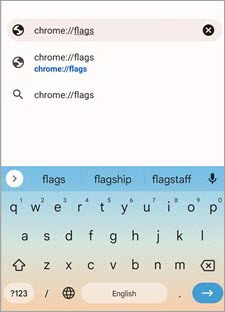
- In the address bar type chrome://flags
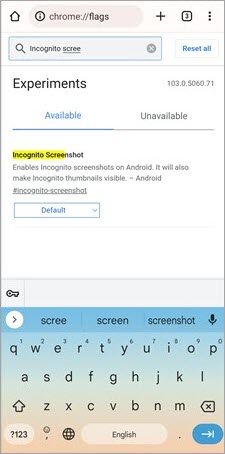
- On that screen type “Incognito Screenshot” in the search bar. Once the option is available, it will display the option.
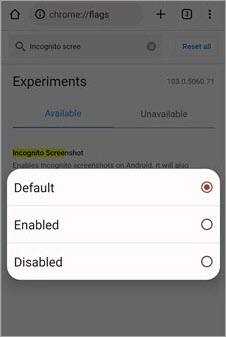
- Click on the drop-down menu and select Enabled.
- Click on Relaunch.
For Firefox
- Launch Firefox.
- Click on the menu and the three vertical dots.
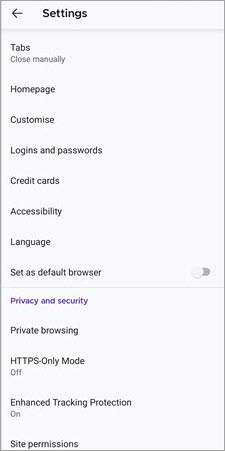
- Select Settings.
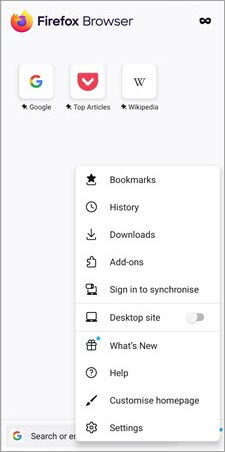
- Click on Private Browsing.
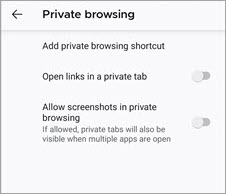
- Toggle the slider beside the “Allow screenshots in private browsing”.
- Relaunch the browser.
You should be able to take a screenshot in incognito mode of both Chrome and Firefox now.
Can’t Take Screenshot Due to Security Policy Bypass for Device Restrictions
In certain situations, you may encounter a frustrating roadblock when trying to take a screenshot on your device. The error message “Can’t take screenshot due to security policy” can be particularly frustrating, as it prevents you from capturing important information or sharing content with others. While this security measure is intended to protect sensitive data, there are legitimate scenarios where you may need to bypass these restrictions. We will explore some methods to bypass device restrictions and enable screenshot functionality in cases where security policies prevent you from capturing screenshots.
In such cases, connect with the IT department of your institute. Most probably there’s an app that is preventing you from taking the screenshots. For that, you can uninstall the app.
In the case of your private device,
- Go to Settings.
- Find Additional Settings.
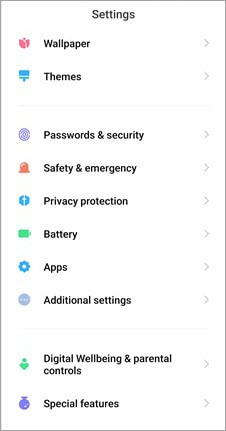
- Go to Button Shortcut or Gesture Shortcut.
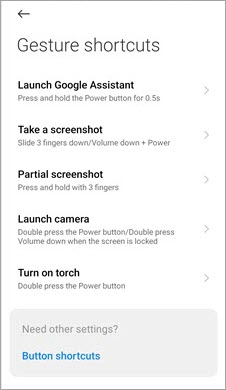
- See if you have set up a screenshot shortcut.
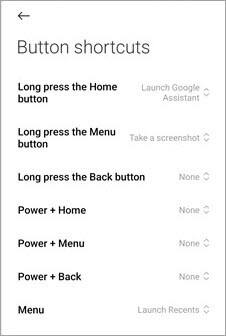
Resolution for Can’t Screenshot Due to Security Policy Due to App Restriction
If the app has put restrictions on taking screenshots, there’s not much you can do. Apps like Confide disable the screenshot feature for privacy reasons. Sometimes apps like Netflix and Facebook can prevent you from taking screenshots due to copyright issues as well.
In such cases:
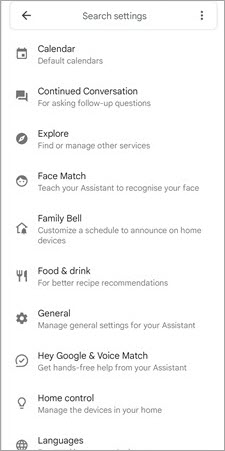
- Launch Google Assistant.
- Tap on your profile picture.
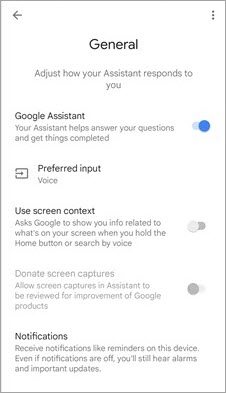
- Scroll down and tap on General.
- Go to use Screen Context and toggle it to the right.
Or,
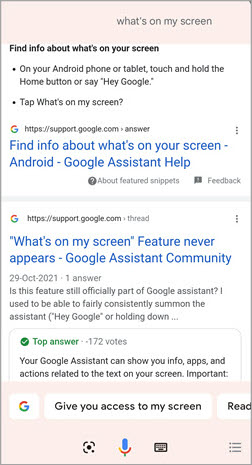
- Open the app that doesn’t allow screenshots.
- Launch your Phone’s assistant.
- Tap on What’s on my screen.
Use Screencast
You can also take screenshots using Screencast. You can cast your screen to a different device and take a screenshot of that one.
Here’s how to screencast your device’s screen:
- Go to Settings.
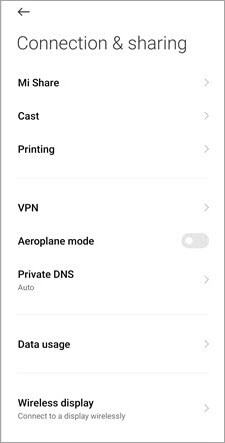
- Tap on Connection and Sharing.
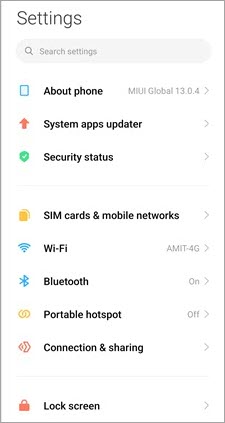
- Select Cast
- Turn on Cast.
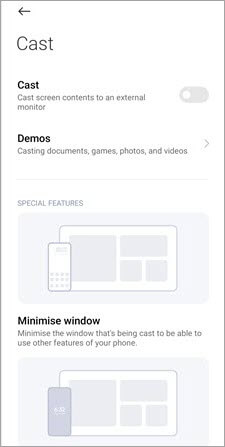
- Connect both devices to the same router.
Or you can just ask your Smartphone’s assistant to cast your screen to another device.
Conclusion:
While encountering the “Can’t take screenshot due to security policy” error can be frustrating, it’s important to remember that these security measures exist to protect sensitive information and copyright holders’ content. However, if you genuinely need to capture screenshots for non-malicious purposes, the solutions provided in this blog post can help you overcome this obstacle. Remember to respect the policies and terms of service set by application developers and content providers while finding alternative ways to document or save the information you need.