Tired of jumping for your phone every time you hear that generic “ding” in a crowded room, only to realize it was someone else’s notification? We’ve all been there. The default Facebook Messenger alert is iconic, but after a decade of hearing the same chime, it’s time for a change. Whether you want a high-energy track for incoming calls or a subtle “blip” for text messages, personalizing your alerts makes your Android experience feel truly yours.
In this ultimate 2026 guide, I will show you exactly how to change the Facebook Messenger ringtone and notification sounds on any modern Android device. Since Meta frequently updates its interface and Android 16/17 has overhauled how notification channels work, the old methods from 2022 won’t cut it anymore. We are diving into the latest settings, hidden menus, and even how to use your favorite MP3s as custom alerts.
By the end of this tutorial, you’ll distinguish between a spam message and an urgent call from your boss without even looking at your screen. Let’s get your Messenger sounding fresh.
Why You Should Customize Your Messenger Sounds
Staying on the default settings is fine for some, but power users know that sound profiles are a productivity tool. By assigning different sounds to different apps—or even different contacts—you train your brain to filter information.
In 2026, with the rise of “Digital Intentionality” features in Android, knowing who is contacting you through audio cues helps reduce screen time. You’ll know instantly if it’s a group chat you can ignore or a direct call that needs your immediate attention. Plus, let’s be honest: the stock Messenger sound is just plain boring.
Prerequisites Before We Start
- Update Your App: Ensure you are running the latest version of Facebook Messenger from the Google Play Store.
- Android Permissions: Ensure Messenger has permission to access your “Music and Audio” files if you plan on using custom sounds.
- Sound Files: If you want a custom song, have the .mp3 or .ogg file saved in your device’s “Ringtones” or “Notifications” folder.
Method 1: Changing the Ringtone Inside the Messenger App
This is the most straightforward method. Meta provides a built-in library of sounds that you can toggle within seconds. While these are “stock” sounds, they are designed to be lightweight and won’t lag your device.
Step-by-Step Instructions:
- Launch Messenger: Open the Facebook Messenger app on your Android device.
- Access Settings: Tap the three horizontal lines (Hamburger menu) in the top-left corner, then tap the Gear icon (Settings).
- Find Notifications: Scroll down until you see Notifications & Sounds and tap it.
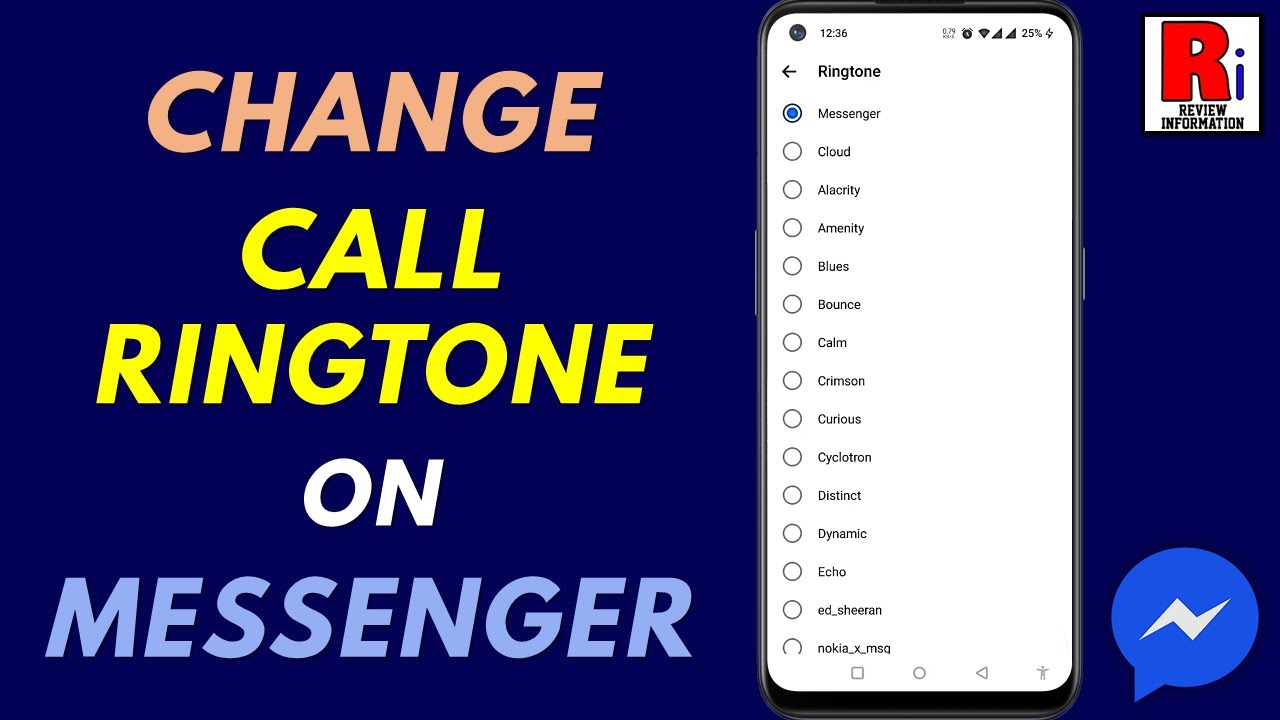
- Select Ringtone: Tap on Ringtone to change the sound for incoming voice and video calls.
- Choose Your Sound: A list of Meta-specific tones will appear. Tap any name to hear a preview.
- Save and Exit: Once you select a sound, just hit the back button. Messenger saves your choice automatically.
[Screenshot Placeholder: Messenger Settings > Notifications & Sounds Menu]
Method 2: Customizing Message Notification Sounds (System Level)
Changing the ringtone (for calls) is easy, but changing the notification sound (for texts) often requires diving into Android’s system settings. This is because modern Android versions manage app alerts through “Notification Categories.”
How to Change the Text Alert:
- Go to Notifications & Sounds within the Messenger app (as described in Method 1).
- Tap on Customize Notifications. This will redirect you to your Android System Settings.
- Select Messenger from the list of categories.
- Tap on Chats or Group Chats.
- Tap Sound. This opens your phone’s system sound picker.
- Select a sound from your phone’s default library or your own uploaded files.
Method 3: Using a Custom MP3 as Your Messenger Ringtone
If you want your favorite 2026 synth-wave track to play when someone calls you on Messenger, you need to manually move the file into the correct system folder. Android doesn’t always “see” your downloads folder when you’re picking a ringtone.
The Folder Trick:
- Open your File Manager app (Files by Google is great for this).
- Locate your MP3 file in the Downloads folder.
- Copy or Move the file to the Ringtones folder (for calls) or the Notifications folder (for texts) in your Internal Storage.
- Now, go back to the Messenger app settings.
- When you tap Ringtone, your custom file will now appear in the list of available options.
Comparison: Stock Messenger Sounds vs. Custom Ringtones
| Feature | Stock Meta Sounds | Custom MP3/OGG Files |
|---|---|---|
| Setup Speed | Instant (2 clicks) | Moderate (Requires file moving) |
| Variety | Limited (approx. 10-15) | Unlimited |
| Battery Impact | Negligible | Low (unless file size is massive) |
| Reliability | 100% (Never fails) | High (may reset after app updates) |
| Uniqueness | Low | Very High |
Pros & Cons of Changing Messenger Sounds
| Pros | Cons |
|---|---|
| Instantly identify your phone in a crowd. | Some custom files might be too quiet. |
| Reduce “Notification Anxiety” by using softer tones. | Can be reset during major Android OS updates. |
| Assign unique sounds to VIP contacts. | High-bitrate files can slightly delay alert timing. |
| Better accessibility for users with hearing specific frequencies. | Requires manual folder management for MP3s. |
Assigning Specific Ringtones to Individual Friends
Did you know you can set a specific sound for your best friend or partner? This way, you don’t even have to pick up the phone to know who is messaging.
- Open a Conversation with the specific person.
- Tap the “i” (Information icon) or their profile name at the top.
- Scroll down to Notifications & Sounds.
- Tap Notification Sound or Ringtone.
- Pick a unique sound for that specific person.
Pro Tip: Use a loud, energetic sound for family and a subtle, short “pop” for work colleagues.
Troubleshooting: Why Won’t My Messenger Ringtone Change?
Sometimes, technology decides to be stubborn. If you followed the steps above but still hear the old “ding,” try these fixes:
1. The Sound Resets to Default
If your custom ringtone disappears, it’s usually because the file was stored on an SD card that was unmounted or the file was deleted. Always keep your ringtone files in the Internal Storage > Ringtones folder to prevent this.
2. Messenger is Muted in System Settings
Android’s “Do Not Disturb” (DND) or “App Hibernation” can override your sound settings.
- Go to Settings > Apps > Messenger > Notifications.
- Ensure the Allow Sound and Vibration toggle is turned on.
3. Dual SIM or Work Profile Conflicts
If you use a Work Profile on Android, the “Work Messenger” has its own separate notification settings. Make sure you are adjusting the settings for the correct profile.
4. File Format Issues
Messenger and Android generally prefer .mp3, .m4a, or .ogg files. If you are trying to use a .wav or a high-res .flac file, the app might not recognize it. Use an online converter to switch it to a standard 128kbps or 192kbps MP3 for the best results.
Advanced Pro Tips for 2026 Power Users
- Use “Zedge” for Quick Downloads: If you don’t want to manually move files, apps like Zedge allow you to browse thousands of tones and apply them directly to specific apps within the interface.
- Volume Balancing: Some custom ringtones are much louder than system sounds. Use a free audio editor like Lexis Audio Editor to “Normalize” the volume of your MP3 before setting it as a ringtone.
- Vibration Patterns: In the same Notifications & Sounds menu, you can also change the vibration pattern. Pairing a custom sound with a “Heartbeat” or “Continuous” vibration makes it impossible to miss a call.
Frequently Asked Questions (FAQs)
How do I change the notification sound for Messenger on Android 16?
On Android 16, you must go to Settings > Apps > Messenger > Notifications > Notification Categories. From there, tap on specific categories like “Chats” to change the sound, as Meta has moved most sound controls to the Android System level.
Why can’t I hear my Messenger ringtone when someone calls?
Check if your phone is in “Vibrate” or “Silent” mode. Additionally, check the In-App sounds toggle in Messenger’s settings. If “Do Not Disturb” is active, Messenger calls will be silenced unless you add the app to the “Exceptions” list.
Can I use a Spotify song as a Messenger ringtone?
Not directly. You cannot link a streaming service like Spotify to Messenger’s sound settings. You must have the physical audio file (.mp3) saved on your phone’s internal storage to set it as a ringtone.
Does changing the ringtone affect Facebook Lite?
No. Facebook Messenger and Facebook Lite are separate apps. If you use Lite, you will need to go into the Lite app’s specific settings to change its notification sounds.
How do I get the old Messenger “Ding” back?
If you’ve changed your sound and hate it, go back to Notifications & Sounds > Ringtone and select “Default” or “Messenger” from the list. This will restore the factory-standard chime.
Can I set a voice recording as a ringtone?
Yes! Record your voice using the “Voice Recorder” app, save it as an MP3, move it to the Ringtones folder, and then select it in the Messenger settings.
Final Thoughts
Personalizing your Facebook Messenger ringtone is one of the quickest ways to improve your daily mobile experience. Whether you’re using the built-in Meta sounds for a cleaner feel or uploading your own custom tracks for a bit of personality, the process is simple once you know where the settings are hidden.
Remember to keep your app updated, as Meta occasionally moves these menus around to align with new Android security protocols. Now that you’ve mastered your sound settings, why not check out our guide on How to Optimize Android 16 for Maximum Battery Life?
Was this guide helpful? Drop a comment below and let us know which custom ringtone you’re rocking in 2026!
Meta Description: Learn how to change Facebook Messenger ringtone and notification sounds on Android with our ultimate 2026 guide. Custom MP3 tips and troubleshooting included!