Stop settling for that grainy, 720p built-in laptop camera that makes you look like a pixelated ghost from 2005. Your smartphone packs a camera sensor worth hundreds of dollars, and it’s time to put it to work. Learning how to use your Android phone as a Windows 11 webcam transforms your video calls, Twitch streams, and remote meetings instantly. Whether you want to leverage Microsoft’s native features or use high-end third-party apps, this 2026 guide covers everything you need to upgrade your video game without spending a dime on new hardware.
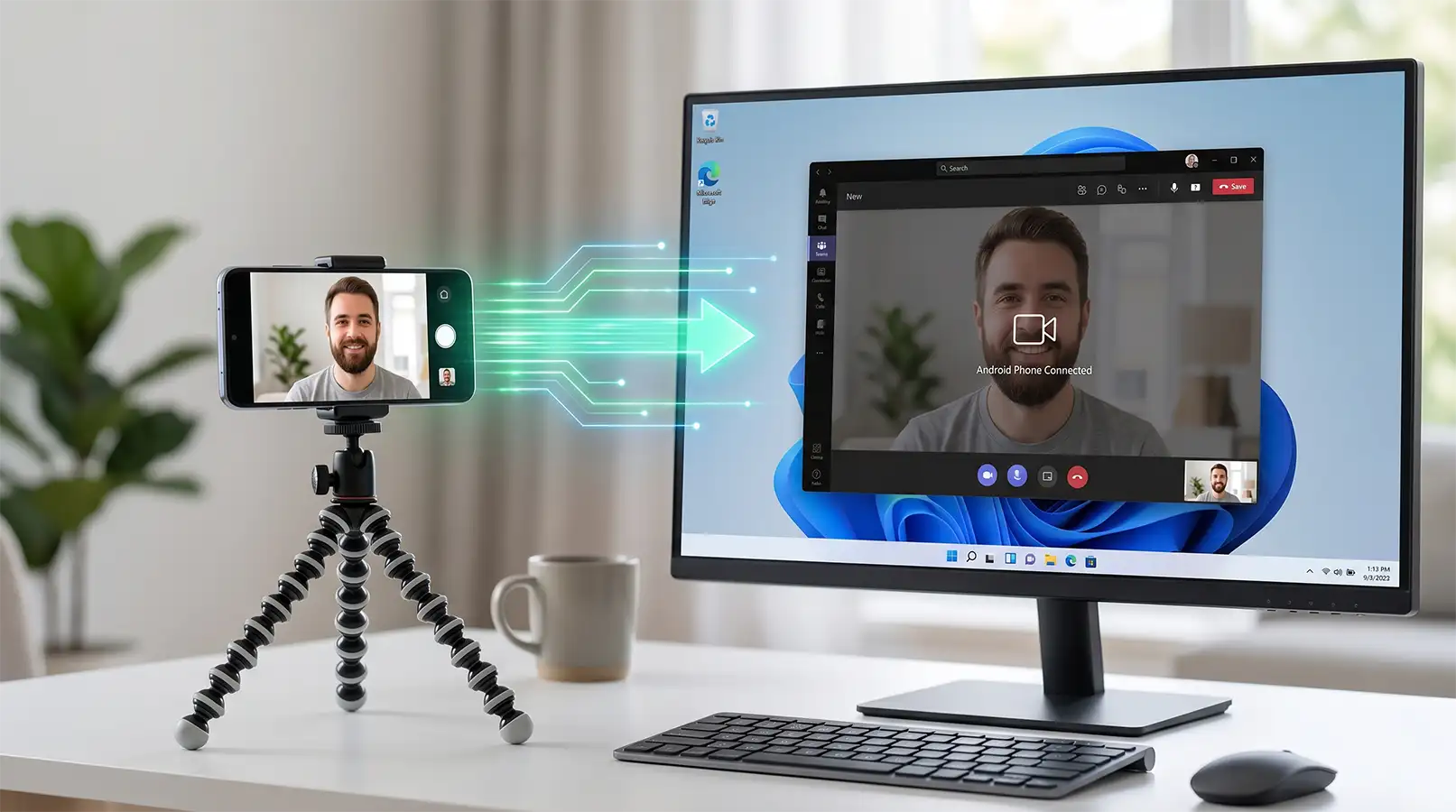
Why Your Android Phone Beats Your Laptop Webcam
Most laptops, even premium ones, still ship with underwhelming front-facing cameras. They struggle with low light, lack autofocus, and produce flat colors. Your Android device, however, offers HDR processing, multi-lens setups (wide, ultra-wide, telephoto), and superior low-light performance. By the end of this guide, you will know how to bridge the gap between your mobile’s hardware and your PC’s software.
Prerequisites for a Smooth Setup
Before we dive into the step-by-step methods, ensure you have these items ready:
- A Modern Android Device: Running Android 9.0 or higher (Android 14+ preferred for native features).
- Windows 11 PC: Updated to the latest build (24H2 or later recommended).
- High-Quality USB Cable: A USB-C 3.1 or 3.2 cable reduces latency compared to Wi-Fi.
- Stable Wi-Fi Network: If you plan to go wireless, ensure both devices are on the 5GHz band.
- A Phone Mount or Tripod: To keep your “webcam” steady at eye level.
Method 1: The Native Windows 11 Way (Cross-Device Experiences)
In 2026, Microsoft and Google have tightened their integration. You no longer strictly need third-party apps if you have a modern Android phone. Windows 11 now includes a native “Mobile Device” feature that treats your phone as a system-wide camera.
Step 1: Link Your Phone to Windows
- Open Settings on your Windows 11 PC.
- Navigate to Bluetooth & devices > Mobile devices.
- Click on Manage devices and ensure the toggle for “Allow this PC to access your mobile devices” is ON.
- Click Add device and follow the QR code prompt to link your Android phone using the “Link to Windows” app.
Step 2: Enable the Camera Feature
- Once linked, look for the toggle labeled Use as a connected camera.
- Switch this to ON.
- A small driver update might trigger on your PC; let it finish.
Step 3: Accessing the Camera
- Open any app like Zoom, Microsoft Teams, or Google Meet.
- Go to the app’s Video Settings.
- Select Windows Default Camera (Mobile) from the dropdown menu.
- Your phone will show a notification asking for permission to start the stream. Tap Allow.
[Screenshot Placeholder: Windows 11 Mobile Device Settings Toggle]
Method 2: Using Third-Party Apps (Best for Power Users)
While the native method is great for basic calls, apps like Camo, DroidCam, and Iriun offer advanced features like manual exposure, green screen removal, and 4K resolution.
The DroidCam Setup (Reliable & Fast)
DroidCam remains a fan favorite for its simplicity and low resource usage.
- Install the App: Download DroidCam from the Google Play Store and the DroidCam Client on your Windows 11 PC.
- Connect via USB: Enable USB Debugging in your Android’s Developer Options. Connect your phone to your PC.
- Launch the Client: Open the DroidCam Client on Windows and select the USB icon.
- Start the Stream: Click Start. Your PC will now recognize “DroidCam Source” as a webcam.
The Camo Studio Setup (Pro-Level Quality)
If you want “Continuity Camera” levels of polish, Camo is the gold standard. It allows you to adjust bokeh (background blur), zoom, and lighting directly from your PC.
- Install Camo: Get Camo on your Android and the Camo Studio software on Windows.
- Pair the Devices: You can connect via Wi-Fi by scanning a QR code or via a USB cable.
- Adjust Settings: Use the Camo Studio dashboard on your PC to switch between the main lens and the ultra-wide lens.
- Integrate: Select “Camo Camera” in your video conferencing software.
Pros & Cons: Android Webcam vs. Traditional Webcam
| Feature | Android Phone as Webcam | Traditional USB Webcam |
|---|---|---|
| Image Quality | Excellent (Up to 4K/60fps) | Average (Usually 1080p) |
| Cost | $0 (If you own the phone) | $50 – $200 |
| Portability | High (Wireless options) | Low (Tied to cable) |
| Setup Time | 2-5 Minutes | Plug-and-Play |
| Battery Impact | High (Drains phone battery) | None |
| Focus/Depth | Natural Bokeh/Autofocus | Fixed Focus/Digital Blur |
Essential Hardware for Your Android Webcam Setup
Using your hand to hold the phone isn’t going to cut it for a 45-minute meeting. To make your Android phone as a Windows 11 webcam setup truly professional, consider these additions:
- MagSafe Adapters for Android: Many 2026 Android cases now support magnetic mounting. A MagSafe-compatible tripod mount allows you to snap your phone on and off instantly.
- Ring Lights: Even the best sensor needs light. A small 6-inch ring light behind your phone removes harsh shadows.
- Long USB-C Cables: Get a 10-foot braided cable so you aren’t tethered too close to the PC tower.
Feature Comparison: Best Android Webcam Apps (2026)
| App Name | Max Resolution | Connection Types | Top Feature | Price |
|---|---|---|---|---|
| Link to Windows | 1080p | Wi-Fi/Cellular | Native Integration | Free |
| Camo Studio | 4K | USB / Wi-Fi | Studio Controls | Free / Paid Pro |
| DroidCam | 1080p | USB / Wi-Fi | Low Latency | Free / Paid Pro |
| Iriun | 4K | USB / Wi-Fi | Simplicity | Free |
Optimizing Your Video Quality
Setting up the connection is only half the battle. To look like a pro, follow these steps:
1. Use the Rear Camera
Never use the selfie camera. The rear sensors on your Android phone are significantly larger and offer better dynamic range. Most apps allow you to toggle which lens you are using from the PC interface.
2. Enable “Do Not Disturb”
Nothing ruins a professional presentation like a loud notification “ping” or a popup from your mom appearing on your webcam feed. Ensure your phone is in Do Not Disturb or Work Mode before starting the stream.
3. Lock the Focus and Exposure
Auto-exposure can cause your video to “flicker” if you move your hands a lot. Use your webcam app’s settings to lock the focus on your face and set a constant exposure level.
Troubleshooting Common Issues
Issue 1: PC Not Recognizing the Phone
- Solution: Check your USB cable. Many cheap cables are “charge-only” and do not transfer data. Switch to the cable that came in your phone’s box. If using Wi-Fi, ensure both devices are on the exact same SSID (not a guest network).
Issue 2: Significant Video Lag (Latency)
- Solution: Move from a Wi-Fi connection to a USB connection. If you must use Wi-Fi, ensure your router is not obstructed and you are using the 5GHz or Wi-Fi 6/7 band. Lower the resolution from 4K to 1080p to reduce the data load.
Issue 3: Phone Overheating
- Solution: Streaming high-resolution video while charging generates significant heat. Remove your phone case to help with heat dissipation. Lower the brightness of the phone screen (or turn the screen off if the app allows) while in use.
Issue 4: Battery Drains While Plugged In
- Solution: Some PC USB ports (especially older USB 2.0 ports) do not provide enough amperage to charge the phone while it’s actively streaming. Plug your cable into a USB 3.0 (blue) or USB-C port on your motherboard.
Advanced Tip: Using Your Android Phone as a Webcam for OBS
If you are a gamer or content creator using OBS Studio, don’t just add your phone as a “Video Capture Device.” Instead, use the NDI (Network Device Interface) protocol.
Apps like NewTek NDI allow you to send your Android camera feed over your local network with almost zero latency and much higher color depth than standard webcam drivers. This frees up your USB ports for your mic and peripherals while maintaining a 4K stream.
FAQs: Everything You Need to Know
Can I use my Android phone as a webcam for Zoom and Teams?
Yes. Once you set up your phone using the “Link to Windows” feature or a third-party app like Camo, it appears as a standard imaging device. You can select it in the “Video Settings” menu of Zoom, Microsoft Teams, Slack, and Google Meet.
Does using my phone as a webcam ruin the battery?
Streaming video is a resource-intensive task. While it won’t “ruin” the battery immediately, the heat generated can accelerate battery degradation over time. To minimize this, use a wired connection and keep the phone’s screen brightness at minimum.
Can I use the microphone on my Android phone too?
Most apps like DroidCam and Camo allow you to use the phone’s microphone as a Windows audio input. However, phone microphones often pick up background noise. We recommend using a dedicated headset or a USB mic for the best audio quality.
Do I need to enable USB Debugging?
For most third-party apps using a wired connection, yes. You can find this by going to Settings > About Phone and tapping “Build Number” seven times. Then, go to Developer Options and toggle on USB Debugging.
Will this work on older versions of Windows?
While this guide focuses on Windows 11, apps like DroidCam and Iriun still work on Windows 10. However, the “Native Mobile Device” feature is exclusive to Windows 11.
Final Thoughts
Using your Android phone as a Windows 11 webcam is the ultimate tech “life hack” for 2026. It saves you money, reduces electronic waste, and provides a video quality that outperforms almost any mid-range webcam on the market. If you want the fastest setup, stick with the native Link to Windows integration. If you need professional-grade color grading and lens control, Camo Studio is your best bet.
Stop settling for blurry video. Mount your phone, plug it in, and show up to your next meeting in crystal-clear 4K.
Found this guide helpful? Check out our other tutorials on AndroidFit.com to master your smartphone and stay ahead of the tech curve!