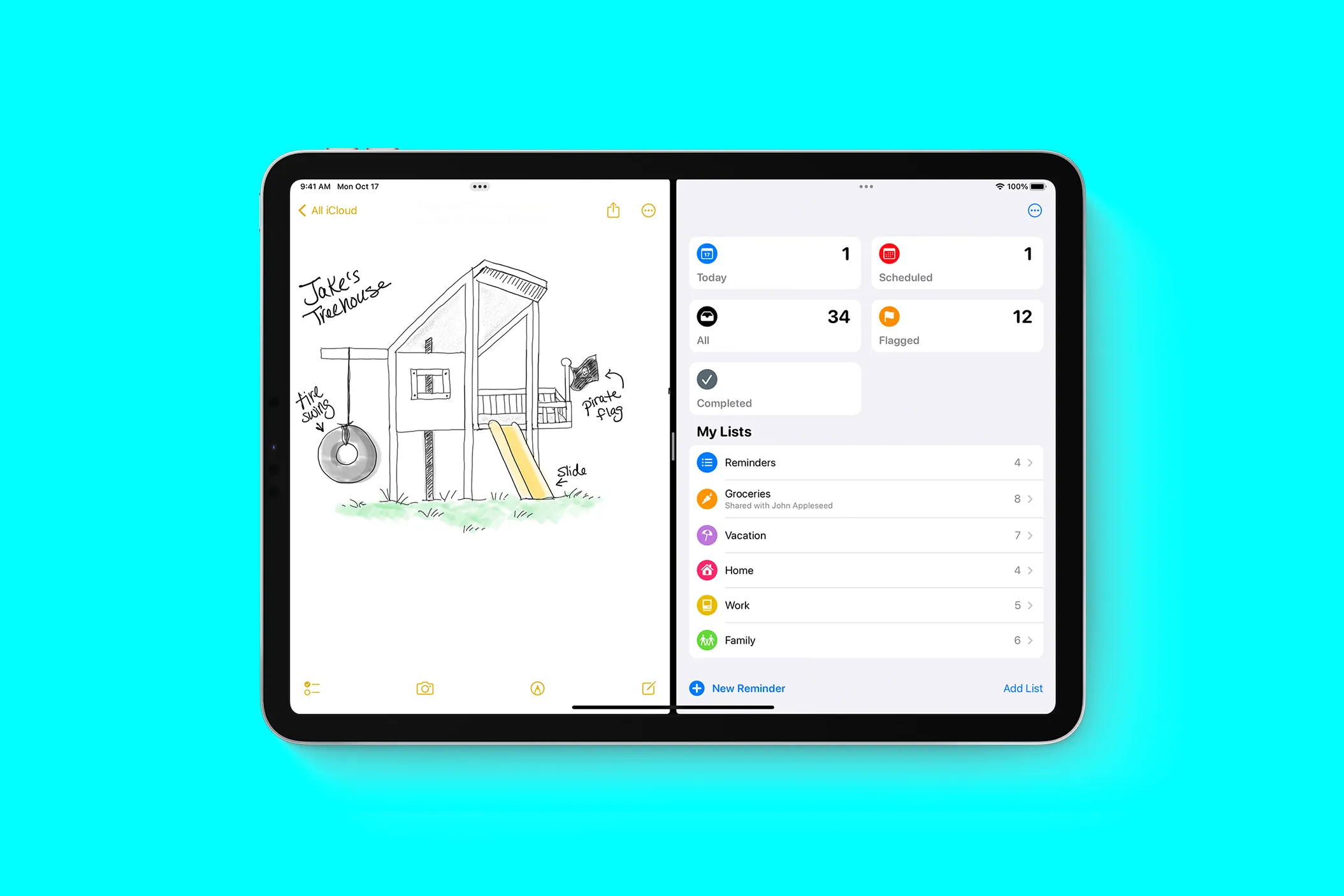
Stop flipping between apps like it’s 2015. If you aren’t using Android split screen mode to its full potential in 2026, you are wasting hours of productivity every week. Android 16 and 17 have turned multitasking into a powerhouse feature, especially with the rise of foldables and high-refresh-rate tablets. Whether you’re a student, a gamer, or a busy professional, mastering dual-window layouts changes how you interact with your device. This guide dives deep into the 11 best ways to utilize this feature to turn your smartphone into a workstation.
Why Android Split Screen Mode Matters in 2026
Multitasking is no longer a gimmick. With mobile processors now rivaling entry-level laptops, your phone handles two intensive apps without breaking a sweat. Android split screen mode allows you to view two apps simultaneously, cutting down on “app-switching fatigue.”
In 2026, Google’s “App Pairs” feature has matured, allowing you to save your favorite dual-app layouts directly to your home screen. This means one tap opens your curated workspace. As foldables become the standard for power users, the extra screen real estate makes split-screen usage the primary way to navigate the OS.
1. Comparative Shopping Like a Pro
Stop trying to memorize prices while jumping between Amazon and eBay. Open your browser in the top window and your favorite retail app in the bottom.
- Best for: Finding the lowest prices during flash sales.
- Key Feature: Drag and drop product names from the browser directly into the search bar of the retail app.
- Pro Tip: Use this to compare specs between two different smartphone models on AndroidFit.
2. Live Note-Taking During Lectures or Meetings
Students and professionals benefit the most from this layout. Run YouTube or a Zoom meeting in the upper half while keeping Google Keep or Microsoft OneNote open below.
- Best for: Webinars, online classes, and remote work syncs.
- Key Feature: Take screenshots of slides in the video and drag them into your notes immediately.
- Pro Tip: Use a stylus on tablets to handwriting notes while the video plays.
3. Navigation and Music Management
While Android Auto is great, many users still prefer mounting their phones. Use Google Maps on the top and Spotify or YouTube Music on the bottom.
- Best for: Long road trips or delivery drivers.
- Key Feature: Change playlists without losing sight of your next turn.
- Pro Tip: Lock the orientation to landscape for a wider view of the map.
4. Real-Time Translation for Global Communication
If you are learning a language or talking to a foreign client, split your screen between a messaging app (like WhatsApp) and Google Translate.
- Best for: Travelers and international business.
- Key Feature: Copy received text and paste it instantly into the translator window.
- Pro Tip: Use the “conversation mode” in Translate to see the live script while you type your reply.
5. Gaming and Discord Coordination
Hardcore mobile gamers use Android split screen mode to stay connected. Keep your game (like Genshin Impact or PUBG Mobile) running while chatting with your squad on Discord.
- Best for: Competitive gaming and MMOs.
- Key Feature: Coordinate raids or strategies without disconnecting from the game server.
- Pro Tip: Check your phone’s “Game Mode” settings to ensure split-screen doesn’t throttle your FPS.
6. Social Media Monitoring and Posting
Content creators need to see what’s trending while they draft posts. Open X (formerly Twitter) on one side and your Instagram Creator Studio or Threads on the other.
- Best for: Social media managers and influencers.
- Key Feature: Monitor live feeds while engaging with your audience.
- Pro Tip: Use this to verify facts on Google before posting a controversial take.
7. Financial Tracking and Banking
Managing your budget is easier when you see your bank statement and a spreadsheet at the same time. Open your banking app alongside Google Sheets or Mint.
- Best for: Monthly budgeting and expense tracking.
- Key Feature: Manually input transactions without the risk of forgetting the amount during an app switch.
- Pro Tip: Use biometric locks on your banking app to keep the split-screen session secure.
8. Recipe Following Without the Hassle
Cooking with a phone is messy if you have to touch the screen constantly. Open a YouTube cooking tutorial on top and a written recipe blog on the bottom.
- Best for: Home chefs and bakers.
- Key Feature: Pause the video to read specific measurements in the text.
- Pro Tip: Set your screen timeout to “Never” while in this mode to avoid greasy fingers touching the glass.
9. Coding and Documentation
Mobile development is a reality in 2026. Use a mobile IDE or Termux on one half and Stack Overflow or official documentation on the other.
- Best for: Developers and tech enthusiasts.
- Key Feature: Debugging code in real-time by following tutorials.
- Pro Tip: Use a Bluetooth keyboard to maximize the available screen space for the windows.
10. Smart Home Management
Monitor your security cameras while adjusting your home environment. Keep your Nest or Ring feed open while using the Google Home app to adjust lights or thermostats.
- Best for: Home security and automation.
- Key Feature: See who is at the door while you unlock the smart lock from the other app.
- Pro Tip: Use the “Pin app” feature to keep the camera feed always on top.
11. Copy-Pasting Between Emails and Documents
Drafting a professional email often requires referencing a PDF or a Doc. Open Gmail on the bottom and your source document on the top.
- Best for: General office productivity.
- Key Feature: Eliminate the need to “Select All” and “Copy” repeatedly by dragging text blocks.
- Pro Tip: Android’s 2026 clipboard manager allows you to see the history of copied items in a small overlay during split-screen sessions.
Comparison: Split Screen vs. Picture-in-Picture (PiP)
| Feature | Split Screen Mode | Picture-in-Picture (PiP) |
|---|---|---|
| Space Usage | 50/50 or 60/40 Split | Floating small window |
| Interactivity | High (Both apps fully active) | Low (Mainly for viewing) |
| Best For | Productivity & Data Entry | Video & Navigation |
| Device Load | Moderate to High | Low |
| Foldable Support | Excellent (Multi-window) | Standard |
Pros & Cons of Android Split Screen Mode
| Pros | Cons |
|---|---|
| Dramatic increase in productivity | Can drain battery faster on older devices |
| Seamless data transfer (Drag & Drop) | Some apps still don’t support resizing |
| Reduces app-switching lag | Can make the UI feel cramped on small screens |
| Ideal for the 2026 generation of foldables | May cause heating during intensive gaming |
How to Enable Split Screen on Any Android Device (2026 Guide)
The process has become more intuitive in recent years. Follow these steps to activate the feature on Android 14, 15, and 16.
- Open the First App: Launch the first app you want to use.
- Enter Recent Apps: Swipe up from the bottom and hold (or tap the Square button if using 3-button navigation).
- Tap the App Icon: Look at the top of the app preview card and tap the icon.
- Select “Split Top”: Choose the split-screen option from the menu.
- Select the Second App: Your home screen or app drawer will appear in the bottom half. Tap the second app to lock it in.
The “App Pair” Shortcut
In 2026, you can save these combinations. Once your screen is split, tap the divider line in the middle and select the “Save App Pair” icon (looks like a plus sign). This adds a shortcut to your home screen that launches both apps instantly.
Troubleshooting Common Split Screen Issues
Issue 1: “App Doesn’t Support Split Screen”
Some apps, especially older games or highly secure banking apps, disable this feature by default.
- Solution: Go to Settings > About Phone. Tap Build Number 7 times to enable Developer Options. Go to System > Developer Options and toggle on “Force activities to be resizable.” Restart your phone.
Issue 2: Extreme Battery Drain or Overheating
Running two apps simultaneously taxes the CPU and GPU.
- Solution: Lower the screen brightness and close unnecessary background apps. If you are gaming in split screen, cap the frame rate to 60Hz instead of 120Hz.
Issue 3: Layout Looks “Broken” or Glitchy
Some apps don’t scale well to the thinner aspect ratio of a split window.
- Solution: Drag the center divider to give the “glitchy” app more room (60/40 split). If it persists, check for an app update in the Play Store, as developers are constantly updating layouts for foldables in 2026.
Pro Tips for Power Users
- The Taskbar: If you are on a tablet or foldable, use the persistent taskbar to drag apps directly onto the screen for an instant split.
- Swap Windows: Double-tap the center divider line to instantly swap the top and bottom (or left and right) apps.
- Adjust Size: Don’t stick to the 50/50 default. Most apps work better when one has 70% of the screen and the other acts as a sidebar.
- Orientation Lock: If you are using split screen for video, rotate your phone to landscape. This gives you a side-by-side view which is much more natural for the eyes.
FAQs: Everything You Need to Know
Does split screen use more RAM?
Yes. Since two apps are kept in an “active” state rather than being cached in the background, your RAM usage will increase. For a smooth experience in 2026, a device with at least 8GB of RAM is recommended.
Can I use three apps at once?
On standard smartphones, you are limited to two apps. However, on foldables (like the Samsung Galaxy Z Fold series) and Android tablets, you can use “Multi-Window” mode to run three or even four apps simultaneously.
Does every Android phone have split screen?
Almost all phones running Android 7.0 (Nougat) or higher support it. However, some “Go Edition” (entry-level) phones might have this feature disabled to preserve performance.
Will split screen damage my battery?
It won’t “damage” the battery, but it will consume power faster. It is similar to playing a high-end game; the increased processor load results in faster discharge.
How do I exit split screen mode?
The easiest way is to grab the center divider and slide it all the way to the top or bottom of the screen. This “expands” one app to full screen and closes the other.
Android split screen mode is the ultimate tool for anyone looking to do more in less time. From comparing prices to mastering a new language, the ability to see two things at once is a superpower for your productivity. Start experimenting with App Pairs today and find the workflow that fits your lifestyle.
Want more Android power user tips? Check out our guide on the to speed up your phone instantly! High-performance multitasking starts with a well-optimized device.