You snapped a perfect shot of your dog jumping for a frisbee, but the shutter clicked a millisecond too late. Instead of a majestic leap, you got a blurry tail. If you were using an iPhone, you’d just slide the frame back using Live Photos. Most people think this is an Apple-exclusive feature, but that is simply not true. Learning how to take live photos on Android gives you the power to capture the seconds before and after you hit the shutter, ensuring you never miss the “real” moment again.
Android manufacturers have their own names for this—Samsung calls it Motion Photo, Google calls it Motion Photos, and Xiaomi calls it Dynamic Shots. Regardless of the branding, the technology works similarly: your camera records a short, low-resolution video clip and bundles it into the metadata of your high-res JPEG. When you scroll through your gallery, these images spring to life with movement and sound.
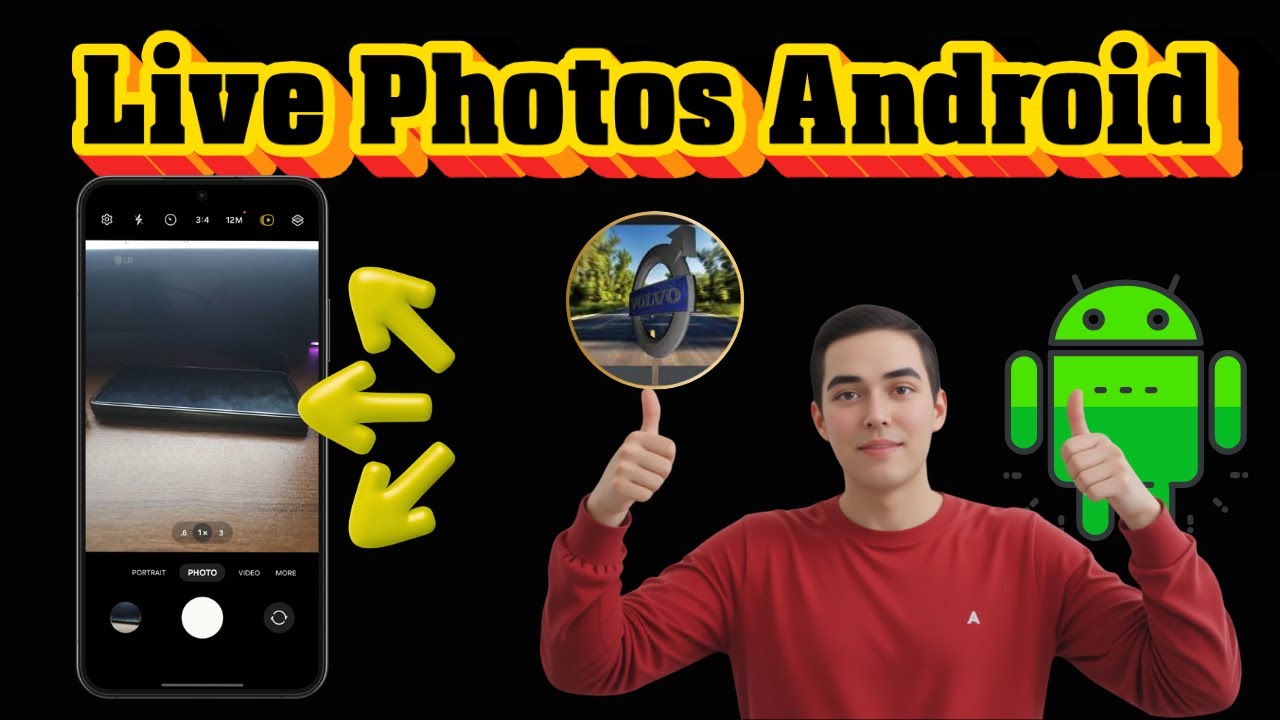
Prerequisites for Live Photos
Before we jump into the methods, ensure your device meets these basic requirements:
- Storage Space: Live photos take up roughly 1.5x to 2x more space than a standard JPEG.
- Android Version: Most native features require Android 10 or higher.
- Camera Permissions: Ensure your camera app has “Files and Media” access.
- Lighting: Motion photos require decent lighting; they often look grainy or fail to activate in extreme low-light environments.
Method 1: Google Pixel Motion Photos (The “Gold Standard”)
If you own a Google Pixel 6 or newer, you are using one of the most advanced motion photo systems available. Google uses AI to stabilize the background while keeping the subject in motion, creating a cinematic look.
Steps to Enable Motion Photos on Pixel:
- Open the Camera app.
- Tap the Settings icon (the gear) in the top left or swipe down on the viewfinder.
- Look for the Top Shot or Motion Photo setting.
- Select Auto (recommended) or On.
- Take your photo.
- To view the motion, open the photo in Google Photos and swipe up or tap the Play icon.
Why use “Auto” instead of “On”?
The “Auto” setting is smart. It only records motion when the camera detects movement. This saves storage space when you are taking a photo of a stationary object like a building or a sleeping cat.
Method 2: Samsung Galaxy Motion Photos
Samsung’s implementation is incredibly user-friendly and integrates deeply with the Gallery app for easy editing. On modern One UI versions, the toggle is right on the main camera interface.
Steps to Enable Motion Photos on Samsung:
- Launch the Samsung Camera app.
- Look for the small square icon with a play button at the top of the screen.
- Tap it so it turns Yellow/Active.
- Capture your image.
- To view it, go to the Gallery, open the photo, and tap View Motion Photo.
Pro Tip: Exporting as GIF or Video
Samsung allows you to save these clips instantly. While viewing a Motion Photo, tap the three dots (More) and select Export. You can choose between a video file or a GIF, making it easy to share on WhatsApp or Discord.
Method 3: Using GCam Ports (For Non-Pixel Users)
If you have a mid-range phone from Motorola, OnePlus, or Nothing, your native camera might not support live photos. However, you can “force” this feature by installing a GCam Port. This is a modified version of the Pixel camera app designed to run on other hardware.
How to install and use GCam for Live Photos:
- Visit a reputable GCam hub like Celso Azevedo.
- Download the APK compatible with your specific phone model.
- Install the APK (you may need to allow “Install from Unknown Sources”).
- Open GCam and go to Settings > Advanced.
- Enable Motion Photos.
- Restart the app and start shooting.
Method 4: Third-Party Apps (GIPHY Cam & Motion Stills)
If you don’t want to mess with APKs or system settings, third-party apps provide a “live photo” experience by creating short, looping clips.
Motion Stills (by Google)
Surprisingly, Google has a standalone app called Motion Stills. It uses advanced stabilization to turn short clips into smooth, looping “live photos” or “Fast Forward” videos. It is perfect for older Android devices that struggle with high-resolution video processing.
GIPHY Cam
For those who want a more social-media-ready version, GIPHY Cam allows you to record short bursts of video that function exactly like live photos but with added filters and stickers. These are saved as high-quality GIFs.
Method 5: Creating Live Photos from Existing Videos
What if you already took a video and wish it was a live photo? You can convert any 1-3 second video clip into a motion photo format using the Google Photos app.
- Open Google Photos.
- Find a short video clip.
- Tap Edit.
- Select Export Frame to get a high-res still, or use the Loop/Motion tool to stabilize and save it as a motion-enhanced image.
Feature Comparison: Android Live Photo Methods
| Feature | Google Pixel | Samsung Galaxy | GCam Port | Motion Stills App |
|---|---|---|---|---|
| Name | Top Shot | Motion Photo | Motion Photo | Motion Still |
| Audio Capture | Yes | Yes | Depends on Build | No |
| AI Stabilization | Excellent | Very Good | Good | Excellent |
| Export Formats | MP4, GIF | MP4, GIF | MP4 | GIF, MP4 |
| Ease of Use | High | High | Moderate | High |
| Storage Impact | Medium | Medium | Medium | Low |
Pros & Cons of Using Live Photos on Android
| Pros | Cons |
|---|---|
| Capture the “hidden” moments before/after a shot | Consumes significantly more storage space |
| Allows you to pick a better “Key Frame” later | Not all apps support viewing the motion |
| Built-in stabilization makes photos feel alive | Can lead to shutter lag on budget devices |
| Easy to convert into shareable GIFs or MP4s | Drains battery faster if left on 24/7 |
Troubleshooting Common Issues
1. Motion Photo Icon is Greyed Out
This usually happens because you have Night Mode, HDR+, or High Resolution (50MP/108MP/200MP) mode turned on. Live photos generally only work in the standard 12MP or 16MP binned modes because the processor cannot handle the data throughput of a 200MP motion clip. Turn off High-Res mode to re-enable motion.
2. Live Photos Appear as Static Images on PC
When you transfer photos to a Windows or Mac computer, they often appear as standard JPEGs. This is because the “motion” is hidden in the file’s metadata or stored as a separate hidden MP4 file. To view them on a PC, use Google Photos Web or export the file as a video/GIF on your phone before transferring.
3. “No Motion Detected” Message
If you are using Google’s “Auto” mode, the camera won’t record motion if the phone is perfectly still and there is no movement in the frame. If you want every photo to be a live photo, switch the setting from Auto to On.
Pro Tips for the Best Live Photos
- Hold Still for a Second After Clicking: The camera records the moments after the shutter too. Don’t drop your phone immediately after taking the shot.
- Use for Macro Shots: Live photos of flowers in the wind or insects look incredible compared to static shots.
- The Key Frame Trick: If someone blinked in your photo, open the Live Photo in Google Photos, tap Edit, go to the Frames tab, and select a different millisecond where their eyes are open. Tap Save Copy.
- Manage Storage: Once a month, search “Motion Photos” in your gallery and delete the ones that don’t need the motion effect. This keeps your Google One storage from hitting its limit.
FAQs
Can I send an Android Live Photo to an iPhone user?
Yes, but you shouldn’t send the JPEG file directly. If you send the JPEG via iMessage or WhatsApp, it will often arrive as a static image. For the best results, use the “Export as Video” option on your Android phone and send the MP4 file. The iPhone user will see it as a short video that looks exactly like a Live Photo.
Do Live Photos record audio?
Yes, most modern Android phones (Samsung and Pixel) record ambient audio along with the motion clip. You can usually mute this in the editing settings if you want to share the clip as a silent GIF.
How do I turn off Live Photos permanently?
Open your camera app, locate the Motion Photo/Top Shot icon (usually at the top of the viewfinder), and tap it until it is crossed out or turns white/transparent. This will save storage space and reduce processing time.
Why is my Live Photo blurry?
Live photos use a lower shutter speed for the video component than for the main high-res still. If you are moving your hands too much, the “motion” part will look blurry even if the main photo is sharp. Use both hands to steady the phone.
Does WhatsApp support Android Motion Photos?
Currently, WhatsApp does not support playing the motion embedded in a JPEG. To share the “live” part, you must first convert it to a GIF or a video within your Gallery app and then upload it to WhatsApp.
Getting the most out of your smartphone means moving beyond basic point-and-shoot habits. Now that you know how to take live photos on Android, you can capture the laughter, the movement, and the atmosphere that a static image simply misses. Whether you’re using a flagship Galaxy or a modified GCam app, the world looks better in motion.
If you found this guide helpful, check out our other tutorials on [Optimizing Android Camera Settings] or [The Best Photo Editing Apps for Android 2026]. Stop taking boring photos—start capturing life!