Nothing kills your browsing flow faster than a “Site Can’t Be Reached” error or a blatant ISP landing page telling you a website is restricted. Whether it’s your internet service provider (ISP) blocking streaming sites, social media blackouts in certain regions, or just annoying workplace filters, you don’t have to deal with it. You can bypass ISP website blocks easily using a custom DNS. This method is faster than a VPN, requires zero technical skills, and takes less than two minutes to set up on your Android device or PC.
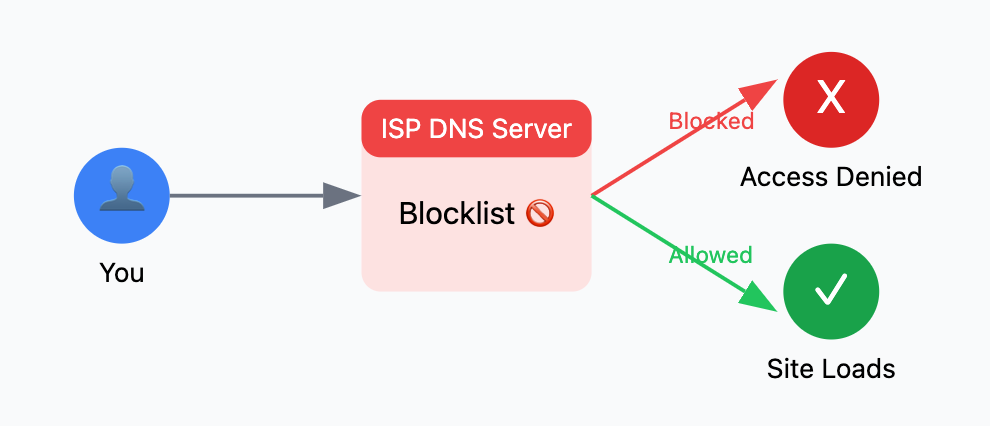
Why Your ISP Blocks Websites (And How DNS Fixes It)
When you type a URL like google.com into your browser, your device doesn’t actually know where that site lives. It asks a Domain Name System (DNS) server to translate that text into an IP address (like 142.250.190.46). By default, your device uses the DNS server provided by your ISP.
Because the ISP controls the “phonebook” of the internet, they can simply choose not to give you the correct address for certain sites. This is called DNS filtering or DNS poisoning. When you switch to a custom DNS provider like Cloudflare or Google, you stop asking your ISP for directions and start asking a neutral third party that doesn’t care about blocks or censorship.
Top DNS Providers Compared
Before we dive into the setup, you need to choose the right provider. Some focus on raw speed, while others specialize in blocking ads or adult content.
| Provider | Primary DNS | Secondary DNS | Best For |
|---|---|---|---|
| Cloudflare | 1.1.1.1 | 1.0.0.1 | Maximum speed & privacy |
| Google Public DNS | 8.8.8.8 | 8.8.4.4 | Reliability & global reach |
| AdGuard DNS | 94.140.14.14 | 94.140.15.15 | Blocking ads & trackers |
| Quad9 | 9.9.9.9 | 149.112.112.112 | Security & malware protection |
| OpenDNS | 208.67.222.222 | 208.67.220.220 | Parental controls |
Prerequisites for Bypassing Blocks
To follow this guide, ensure you have:
- An active internet connection (Wi-Fi or Mobile Data).
- Administrative access to your device settings.
- An Android device running Android 9 (Pie) or higher for the easiest method.
- For older devices, you’ll need a third-party app from the Play Store.
Method 1: Bypassing ISP Blocks on Android (Android 9.0 and Above)
Modern Android versions include a feature called “Private DNS.” This uses DNS over TLS (DoT) to encrypt your DNS queries, making it impossible for your ISP to see or block your requests.
Step-by-Step Guide:
- Open Settings: Pull down your notification shade and tap the gear icon.
- Navigate to Connection Settings: Tap on Network & Internet or Connections.
- Find Private DNS: Look for an option labeled Private DNS. You might need to tap More connection settings to see it.
- Select Private DNS Provider Hostname: Switch the setting from “Automatic” to “Private DNS provider hostname.”
- Enter the Hostname: Type in the address of your chosen provider.
- For Cloudflare, enter:
one.one.one.one - For Google, enter:
dns.google - For AdGuard, enter:
dns.adguard.com
- For Cloudflare, enter:
- Save: Tap Save.
Once saved, your Android phone will route all traffic through that encrypted tunnel, effectively bypassing most ISP-level blocks.
Method 2: Using the 1.1.1.1 App (Best for Older Android Devices)
If you are running Android 8 or older, you won’t find the Private DNS setting. The easiest workaround is using the official Cloudflare 1.1.1.1 app. This app creates a local “VPN” tunnel that only handles DNS queries, so it doesn’t slow down your actual browsing speed.
Step-by-Step Guide:
- Download the App: Head to the Google Play Store and search for 1.1.1.1: Faster & Safer Internet.
- Install and Launch: Open the app and skip the intro screens.
- Accept the VPN Profile: The app will ask for permission to set up a VPN connection. Tap OK or Accept. This is necessary for the app to intercept DNS requests.
- Toggle the Switch: Tap the big “Disconnected” button to turn it to “Connected.”
- Verify: You will see a small key icon in your status bar indicating the DNS wrap is active.
[Screenshot Placeholder: 1.1.1.1 App toggle screen in connected state]
Method 3: Bypassing Blocks on Windows 10 & 11
If you’re trying to bypass blocks on your laptop or gaming rig, Windows makes it easy to change DNS settings globally.
- Open Settings: Press
Win + I. - Go to Network & Internet: Click on Ethernet or Wi-Fi depending on your connection.
- Edit IP Settings: Find the DNS server assignment section and click Edit.
- Change to Manual: Select Manual from the dropdown and toggle the IPv4 switch to “On.”
- Enter DNS Addresses:
- Preferred DNS:
1.1.1.1 - Alternate DNS:
1.0.0.1
- Preferred DNS:
- Enable Encryption: Under “DNS over HTTPS,” select Encrypted only (DNS over HTTPS) for maximum security.
- Save: Hit save and restart your browser.
Method 4: Browser-Level DNS (The “Quick Fix”)
If you don’t want to change your entire system settings, you can change the DNS inside Google Chrome or Brave. This only affects the browser, not your other apps.
- Open Chrome Settings: Tap the three dots and go to Settings.
- Privacy and Security: Tap on Privacy and security.
- Use Secure DNS: Tap Use secure DNS.
- Choose a Provider: Select “Choose another provider” and pick Cloudflare (1.1.1.1) or Google (Public DNS) from the dropdown.
Pros & Cons of Using Custom DNS
Switching your DNS is a powerful move, but it isn’t a magic bullet for everything. Here is how it stacks up against staying with your ISP or using a VPN.
| Feature | Custom DNS | Standard ISP DNS | VPN |
|---|---|---|---|
| Bypass Basic Blocks | ✅ Yes | ❌ No | ✅ Yes |
| Internet Speed | 🚀 Faster | 🐢 Average | 📉 Slower |
| Privacy | 🛡️ Improved | 👁️ None | 🔒 Maximum |
| Hide IP Address | ❌ No | ❌ No | ✅ Yes |
| Setup Ease | ⭐ Easy | ⚙️ Default | 📱 Moderate |
| Bypass Geo-Restricted Netflix | ❌ No | ❌ No | ✅ Yes |
Pros
- Zero Latency: Unlike a VPN, DNS doesn’t route your actual data through a distant server. Your ping remains low, which is perfect for gaming.
- Battery Friendly: Changing a setting in Android doesn’t consume extra battery life, whereas VPN apps can drain 10-15% more juice.
- Free: The best DNS providers are completely free to use.
Cons
- No IP Masking: Your ISP still knows which IP addresses you are connecting to, even if they can’t see the specific domain name.
- Doesn’t Bypass Firewalls: If a website is blocked via IP-level filtering (common in China or Iran), DNS alone won’t work.
- No Encryption for Data: While your DNS query is encrypted, the actual data you send to a website (if it’s not HTTPS) isn’t.
Troubleshooting Common DNS Issues
Sometimes things don’t go smoothly. If you lose internet access after changing these settings, try these fixes:
- “No Internet” After Setting Private DNS: This usually means you mistyped the hostname. Ensure there are no spaces and you didn’t include
https://. It should just beone.one.one.oneordns.google. - Websites Still Blocked: Your ISP might be using Deep Packet Inspection (DPI). If DNS doesn’t work, the ISP is looking at the actual traffic headers, not just the DNS request. In this case, you will need a VPN or a “DNS over HTTPS” (DoH) browser extension.
- Captive Portal Issues: If you are on a hotel or airport Wi-Fi, custom DNS often prevents the login page (captive portal) from appearing. Switch Private DNS to “Automatic” to log in, then switch it back once you have internet access.
- Flush Your DNS Cache: On Windows, open Command Prompt and type
ipconfig /flushdns. On Android, simply toggle Airplane Mode on and off to clear the local cache.
Pro Tips for Power Users
- Ad-Blocking at the Source: Use
dns.adguard.comas your Private DNS hostname. This blocks ads in almost every app on your phone, not just the browser. It’s the easiest way to kill those annoying “Free-to-Play” game ads. - Combine with a Browser: For the ultimate bypass setup, use Brave Browser with a custom DNS. Brave has built-in fingerprinting protection, and when paired with an encrypted DNS, it makes you nearly invisible to ISP tracking.
- Router-Level DNS: If you want every device in your house (Smart TVs, consoles, IoT) to bypass blocks, log into your router settings (usually
192.168.1.1) and change the DNS settings there. This protects your entire home network at once.
FAQs
Is changing my DNS legal?
Yes, changing your DNS is 100% legal. You are simply choosing which directory service you want to use to navigate the internet. However, using it to access copyrighted content may still fall under local copyright laws.
Will custom DNS make my internet faster?
In many cases, yes. ISP DNS servers are often slow and overloaded. Providers like Cloudflare have servers globally, often resulting in faster “time-to-first-byte” when loading websites.
Does DNS hide my browsing history from my ISP?
Not entirely. Encrypted DNS (DoT/DoH) hides the names of the sites you visit. However, your ISP can still see the IP addresses you connect to. For total history masking, you need a VPN.
Does this work for apps like TikTok or PUBG if they are banned in my country?
It depends. If the ban is a simple DNS block, it will work. If the government has ordered ISPs to block the app’s server IP addresses, you will need a VPN to change your virtual location.
Can I use two DNS providers at once?
No, you can only use one Private DNS hostname at a time on Android. On Windows, you can set a Primary and a Secondary DNS for redundancy.
Will changing DNS affect my ping in mobile games like Genshin Impact or CoD Mobile?
Yes, and usually for the better. A more stable DNS server can reduce “DNS lookup” lag, though it won’t change the physical distance between you and the game server.
Final Thoughts
Learning how to bypass ISP website blocks is an essential skill for any modern Android user. By switching to a custom DNS like Cloudflare or Google, you reclaim your right to an open internet, boost your privacy, and even speed up your browsing. It’s a set-it-and-forget-it solution that requires no subscription fees or battery-draining apps.
If you found this guide helpful, check out our other tutorials on AndroidFit.com, where we cover the latest mod APKs, hardware hacks, and mobile gaming tips to help you get the most out of your smartphone.